📱 How to Uninstall Pre-installed Apps Using UAD-ng
If you want to remove pre-installed apps from your Android phone without using complex command-line tools, Universal Android Debloater Next Generation (UAD-ng) is the safest and easiest solution. This tool provides a graphical user interface (GUI) to manage apps on your device.
Prerequisites
Before starting, ensure you have the following:
- A PC (Windows, macOS, or Linux).
- A USB Cable to connect your phone.
- An Android Phone with Developer Options enabled.
- Android Platform Tools installed on your PC. Shown how to do below)
Step 1: Install Platform Tools
For the tool to communicate with your phone, you need the Android Platform Tools. You can quickly install them using Windows Command Prompt or PowerShell:
- Open your Command Prompt or PowerShell as Administrator.
- Run the following command:
winget install --id Google.PlatformTools - Follow the on-screen prompts to complete the installation.
Step 2: Prepare Your Phone
You must enable USB Debugging to allow your PC to communicate with your phone.
- Open Settings on your phone.
- Go to About Phone.
- Tap Build Number 7 times rapidly until it says, “You are now a developer!”
- Return to the main Settings menu.
- Search for and open Developer Options.
- Locate and toggle on USB Debugging.
- Connect your phone to your PC. If a prompt appears on your phone screen asking to “Allow USB Debugging,” check “Always allow from this computer” and tap OK.
Step 3: Download UAD-ng
- Visit the official UAD-ng GitHub Releases page.
- Download the executable file appropriate for your operating system (e.g.,
uad_gui-windows.exefor Windows).
Step 4: Remove Unwanted Apps
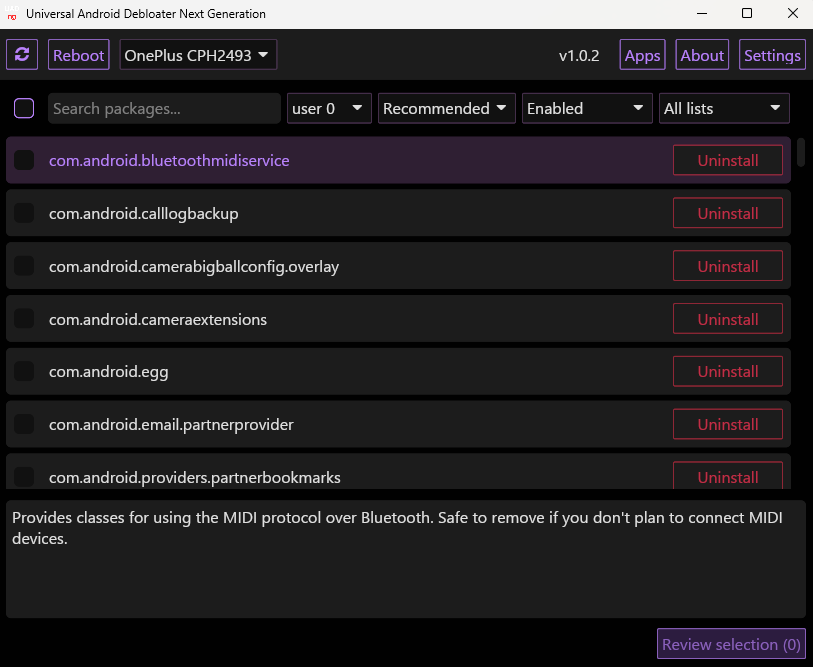
- Launch the tool: Run the file you downloaded.
- Detection: UAD-ng will automatically detect your connected device and load a list of all installed packages.
- Search: Use the search bar at the top to look for the app you want to remove (e.g., “YouTube”).
- Action: Select the app, and click the Uninstall button.
- Tip: If you are unsure about an app, choose Disable instead. This hides the app without fully removing it, making it safer to reverse later.
Video Tutorials
If you prefer to follow along visually, these tutorials demonstrate the process:
- Easily Remove Bloatware Apps with Universal Android Debloater
- How to Debloat an Android Device (Universal Android Debloater)
- Universal Android Debloater (Tool) Debloat Any Android Phone Easily
Important Warnings
- Safety First: Only remove apps labeled as “Recommended” if you are a beginner. Removing “Essential” system apps can cause your phone to become unstable or enter a bootloop.
- Backups: Always back up your important data before using debloating tools.
- Factory Reset: If you perform a factory reset, the apps will reappear. You will need to run UAD-ng again to remove them.